What You'll Learn
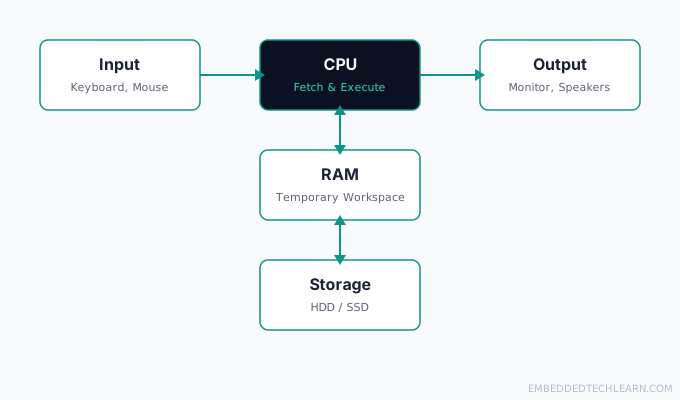
Every computer, from a smartwatch to a data center server, is built from the same four functional parts: a CPU, memory, storage, and input/output. What Is Computer Architecture? introduced these four as a group; this tutorial takes a closer, practical look at each one on its own, what it actually does, how it compares to the others, and how they hand data back and forth during something as ordinary as opening a picture file. It's part of our Computer Architecture series.
On This Page
- The CPU: The Brain of the Computer
- Memory (RAM): The Short-Term Workspace
- Input and Output: Talking to the World
- Storage: The Long-Term Memory
- These Four Parts in Embedded Systems
- CPU vs. RAM vs. Storage at a Glance
- How All Four Parts Work Together
- Real-World Examples
- Common Mistakes and Misconceptions
- Frequently Asked Questions
- References
The CPU: The Brain of the Computer
The CPU (central processing unit) is the part that actually does the work: it fetches instructions, decodes what they mean, and executes them, one after another, extremely fast. A useful comparison is a chef in a kitchen: the chef reads a recipe step, does that step, then reads the next one. The chef doesn't store the ingredients (that's storage's job) or keep everything within arm's reach at once (that's RAM's job), the chef just executes steps. For what's actually happening inside that chip, the Control Unit, the ALU, registers, and multiple cores, see What Is a CPU? How It Works.
Memory (RAM): The Short-Term Workspace
RAM (random-access memory) is fast, temporary storage that holds whatever the CPU is actively using right now: open programs, in-progress documents, loaded game levels. It's volatile, meaning its contents disappear the moment power is cut, which is exactly why an unsaved document vanishes after a crash. For how that volatility compares to the non-volatile memory that stores a device's own firmware, see RAM vs. ROM: What's the Difference?.
Think of RAM as a desk. The chef (CPU) works with ingredients laid out on the desk (RAM) rather than walking to the pantry (storage) for every single item. A bigger desk lets the chef keep more out at once, which is the entire reason "more RAM" tends to help with multitasking specifically, not raw CPU speed.
RAM capacity and RAM speed are two different specifications that get conflated constantly. Capacity (how many gigabytes) determines how much can be kept resident at once. Speed (how quickly the CPU can read and write to it) determines how fast that data can actually be worked with. A system can have plenty of capacity and still feel sluggish if the RAM itself is slow, though in practice capacity is the more common bottleneck for everyday use.
Input and Output: Talking to the World
Input and output devices are how a computer exchanges information with the outside world. Input devices (keyboard, mouse, microphone, camera) turn real-world action into data the CPU can process. Output devices (monitor, speakers, printer) turn processed data back into something a person can see, hear, or hold.
Neither input nor output does any real computation, they're the boundary of the system. A keyboard doesn't know what a "letter" means any more than a monitor knows what a "pixel" represents, both just move signals across that boundary in one direction or the other.
Some devices blur the line on purpose. A network connection is simultaneously an input (receiving data from elsewhere) and an output (sending data out), and a touchscreen is an input and output device combined into one piece of hardware. The categories describe a device's role in a given moment, not a fixed property of the hardware itself.
Storage: The Long-Term Memory
Storage is what keeps data around after the power goes off: the operating system itself, installed programs, and every saved file live here, not in RAM. Two technologies dominate:
- HDD (hard disk drive): slower, mechanical (a spinning platter and a moving read/write head), but cheap per gigabyte.
- SSD (solid-state drive): much faster, with no moving parts (flash memory instead), and now the standard in most new computers despite costing more per gigabyte.
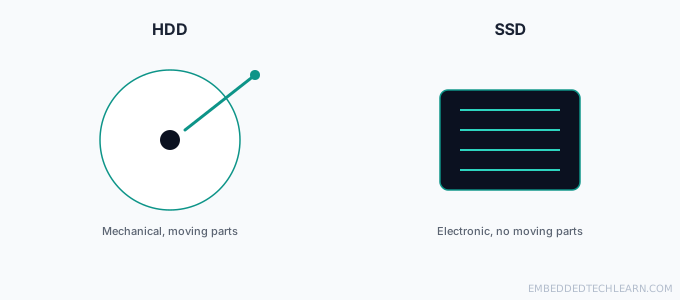
The mechanical parts inside an HDD are exactly why SSDs feel so much snappier in everyday use: an SSD can jump straight to any piece of data electronically, while an HDD has to physically move a head into position first. Newer SSDs connected via NVMe push this further still, communicating directly over the same high-speed bus the CPU itself uses rather than through an older, slower storage interface, which is why two drives with the same listed capacity can perform very differently depending on how they connect to the rest of the system. Both HDDs and SSDs are hardware in the strictest sense, see Hardware, Software, and Firmware Explained for how that layer relates to the software and firmware that actually control it.
These Four Parts in Embedded Systems
A general-purpose computer keeps these four parts as separate physical components, largely because it needs to run arbitrary, unpredictable software. Embedded systems often collapse several of them onto a single chip: a microcontroller typically bundles a small CPU core, a modest amount of RAM, and some flash storage all in one package, with GPIO pins standing in for general-purpose input and output.
The functions don't disappear, they just stop being separate, swappable parts. A microcontroller's "storage" might be a few hundred kilobytes of on-chip flash rather than a multi-terabyte SSD, and its "RAM" might be measured in kilobytes rather than gigabytes, but the same four-part model (something to execute code, somewhere to hold working data, somewhere to keep it permanently, and a way to talk to the outside world) still applies underneath.
CPU vs. RAM vs. Storage at a Glance
| Part | Function | Speed | Keeps data without power? |
|---|---|---|---|
| CPU | Executes instructions | Fastest | No (registers only, and only for the current instant) |
| RAM | Holds active data for quick access | Very fast | No |
| Storage | Saves files and programs long-term | Slower than RAM | Yes |
How All Four Parts Work Together
None of the four parts covered so far does anything useful in isolation. A CPU with nothing to execute just idles. RAM with nothing loaded into it is empty. Storage no one reads from is just an inert record of bytes. Input with nothing to receive it goes nowhere, and output with nothing to display sits blank. The only reason a computer feels like a single, coherent thing instead of four unrelated parts is that they constantly hand data back and forth in a specific, repeatable order.
Opening a picture file walks through the whole chain in order:
- Clicking the image icon is an input event.
- The CPU receives that instruction.
- The CPU tells storage to locate and read the image file.
- The file's data loads into RAM, so the CPU can access it quickly and repeatedly while rendering.
- The CPU processes the pixel data (decoding, color correction, scaling to fit the screen).
- The finished image appears on the monitor, an output device.
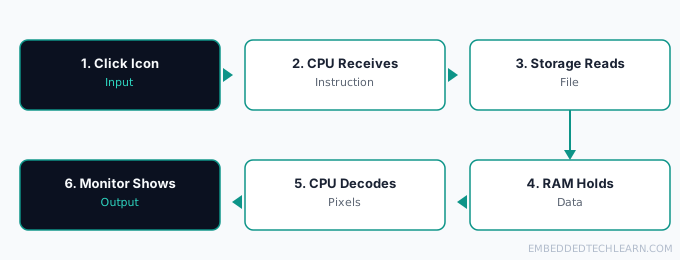
Every one of the four parts does exactly one job in that sequence, and skipping any single step (no storage to read from, no RAM to hold the decoded image, no CPU to decode it) breaks the whole chain.
Real-World Examples
Example 1: Opening a Picture File
Covered step by step above: input triggers the CPU, storage supplies the raw file, RAM holds the working copy, the CPU decodes it, and the monitor displays the result. A larger, higher-resolution image simply means more data has to travel through every stage of that same chain, which is exactly why huge photo files feel noticeably slower to open than small ones.
Example 2: Too Many Browser Tabs Slowing Everything Down
Each open tab keeps its own data resident in RAM. Once enough tabs are open that RAM fills up, the system starts swapping some of that data out to storage to make room, and storage is drastically slower than RAM. The computer isn't "getting confused," it's running out of desk space and resorting to the pantry mid-task. Closing a handful of unused tabs often fixes the slowdown instantly, precisely because it frees up that RAM again.
Example 3: Copying a Large File, HDD vs. SSD
Copying a 20GB file on an HDD means the drive's read/write head has to physically track across a spinning platter the entire time. The same copy on an SSD is a purely electronic operation with no moving parts to wait on, which is why the exact same file transfer can take minutes on one and seconds on the other. This is also why an old laptop can feel dramatically faster after nothing more than an HDD-to-SSD swap, with the CPU and RAM completely unchanged.
Example 4: Booting From a Live USB
A live USB lets a computer run an entire operating system loaded straight into RAM, without installing anything to the internal storage. It demonstrates that storage isn't strictly required to run software, only to keep it around permanently. Shut the computer off and everything from that session is gone, exactly like any other RAM contents. It's also a common way to repair a computer whose own storage has failed, since the OS never has to touch the broken drive at all.
Example 5: Multitasking Between Several Applications
Switching between a video call, a document, and a music player feels instant because the CPU is actually rapidly switching between all three, giving each a tiny slice of time, while RAM keeps every one of them fully loaded and ready. If any of those programs had to be reloaded from storage every time you switched to it, multitasking would feel completely different, closer to closing and reopening an application each time rather than instantly switching back to it.
Common Mistakes and Misconceptions
- Calling the whole computer "the CPU." The CPU is one part inside the case, not the entire machine.
- Assuming RAM and storage are interchangeable. RAM is fast and temporary; storage is slower and permanent. A system needs both, for different reasons.
- Assuming an SSD has no downsides. SSDs are faster and more reliable for everyday use, but still cost more per gigabyte than an HDD at large capacities.
- Blaming a "slow computer" on the CPU by default. Running low on RAM, or a slow HDD, causes just as many of the slowdowns people usually blame on the processor.
- Assuming storage capacity and storage speed are the same spec. A drive can be large and slow, or small and fast, capacity and speed are independent properties, not two sides of the same number.
Frequently Asked Questions
Is the CPU the same thing as "the computer"?
No. The CPU is one component inside the case, alongside memory, storage, and the motherboard that connects them all. People say "the CPU is slow" as shorthand for "the computer is slow," but the actual bottleneck is just as often RAM or storage.
Why do computers need both RAM and storage?
RAM gives fast, temporary access for whatever is actively running. Storage gives slower, permanent capacity that survives a power cycle. Each solves a problem the other one cannot: RAM would lose everything on every reboot, and storage alone would be far too slow for the CPU to work with directly.
What determines a computer's speed more: RAM or CPU?
Both, for different reasons. CPU speed affects how fast individual instructions execute. RAM capacity affects how many programs and how much data can be handled at once without slowing down. A fast CPU paired with too little RAM will still stutter under a heavy multitasking load.
Should I choose an HDD or an SSD?
An SSD is faster and more reliable, since it has no moving parts, and is the modern standard. An HDD offers more storage per dollar, which is why it still shows up in budget or bulk-storage systems.
Can a computer run with no storage at all?
Only in a limited way, such as booting from a live USB or over a network. A permanent OS install, saved files, and installed programs all require real storage.
Which of the four parts becomes the bottleneck first when RAM fills up?
Storage. Once RAM is full, the operating system starts swapping data out to storage to make room, and storage is drastically slower than RAM, that's the stutter you feel. See RAM vs. ROM for the deeper mechanics of exactly what happens during that swap.
Does adding more storage help if RAM is actually the bottleneck?
No, they solve different problems. Storage capacity determines how much you can keep long-term; RAM capacity determines how much of that can be actively worked on at once. A full RAM and a full hard drive produce completely different symptoms, and more of one never substitutes for a shortage of the other.
Do all computers have all four of these parts?
Every general-purpose computer does. Some embedded systems collapse several of these into a single chip (like a microcontroller combining a CPU with a small amount of RAM and flash storage), but the four functions still exist, just not always as separate physical parts.
Why does opening a large file sometimes feel slow?
The file has to move from storage into RAM before the CPU can work with it, and storage is the slowest part of that chain, especially on an HDD. A large file simply takes longer to make that trip.
Why do two computers with the identical CPU model perform differently?
Because the CPU is only one of the four parts. Different amounts of RAM, a slower or faster storage drive, or a bottlenecked I/O device can all make two machines with the exact same CPU feel noticeably different day to day.
How does this relate to computer architecture?
These four parts, and the bus connecting them, are exactly what computer architecture organizes and optimizes. This article is the practical, closer look at the same model.
References
- Central processing unit: overview of how a CPU fetches and executes instructions.
- Random-access memory: overview of volatile memory and how RAM is used.
- Solid-state drive: overview of SSD technology compared with traditional HDDs.